




 한국어
한국어
 English
 简体中文
简体中文
 日本語
日本語
 Tiếng Việt
 ខ្មែរ
ខ្មែរ
[Update]UTTU CADv.1.12
hello UTTU CADno see.
UTTU CADv.1.12 We would like to inform you about the update..

(1) 14Provides several example files
<Example>
① Run program– popup– Pattern selection
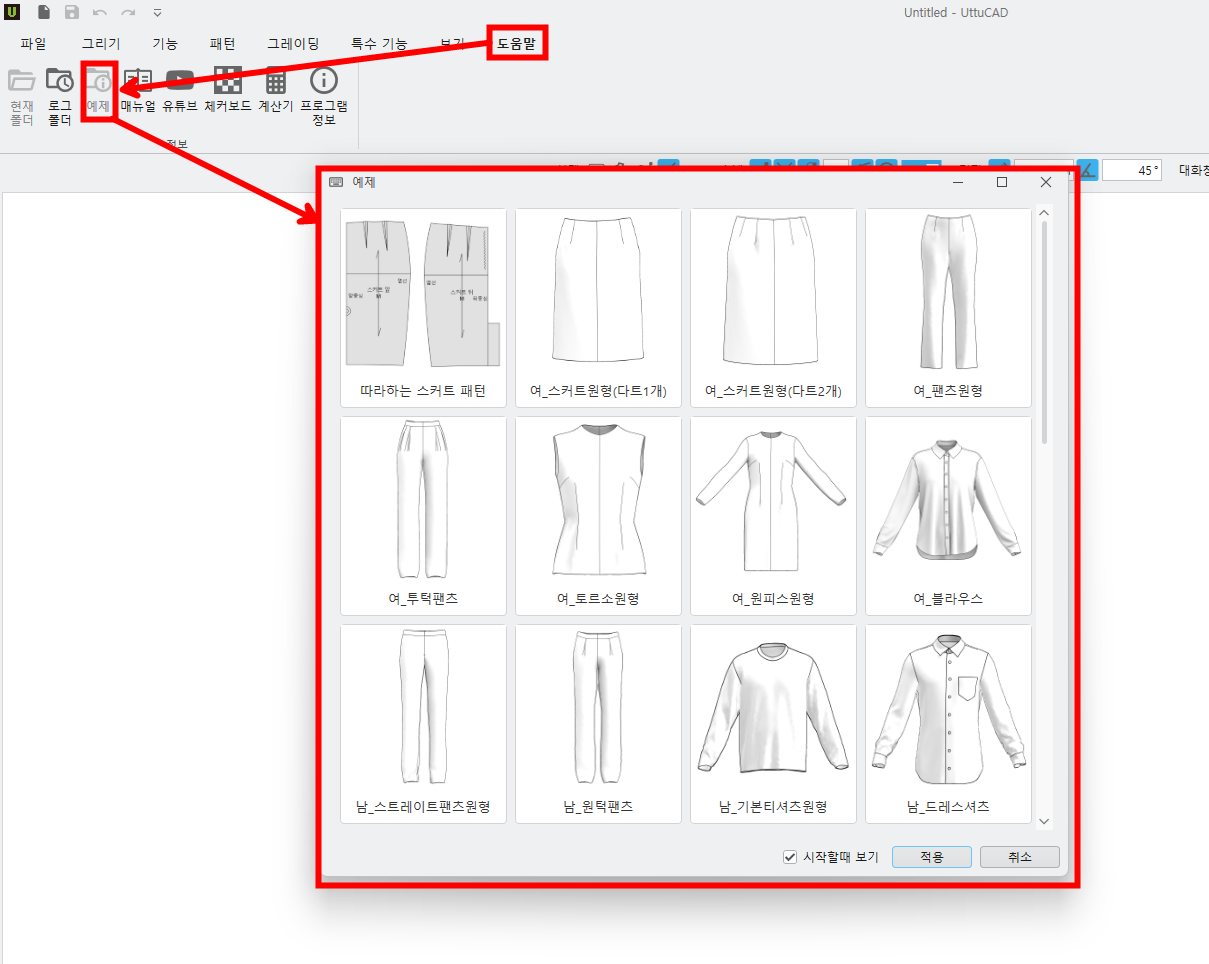
-A popup appears when you run the program for the first time..
‘View at startup’If not selected, the popup does not appear, and,You can find it again in the example file..
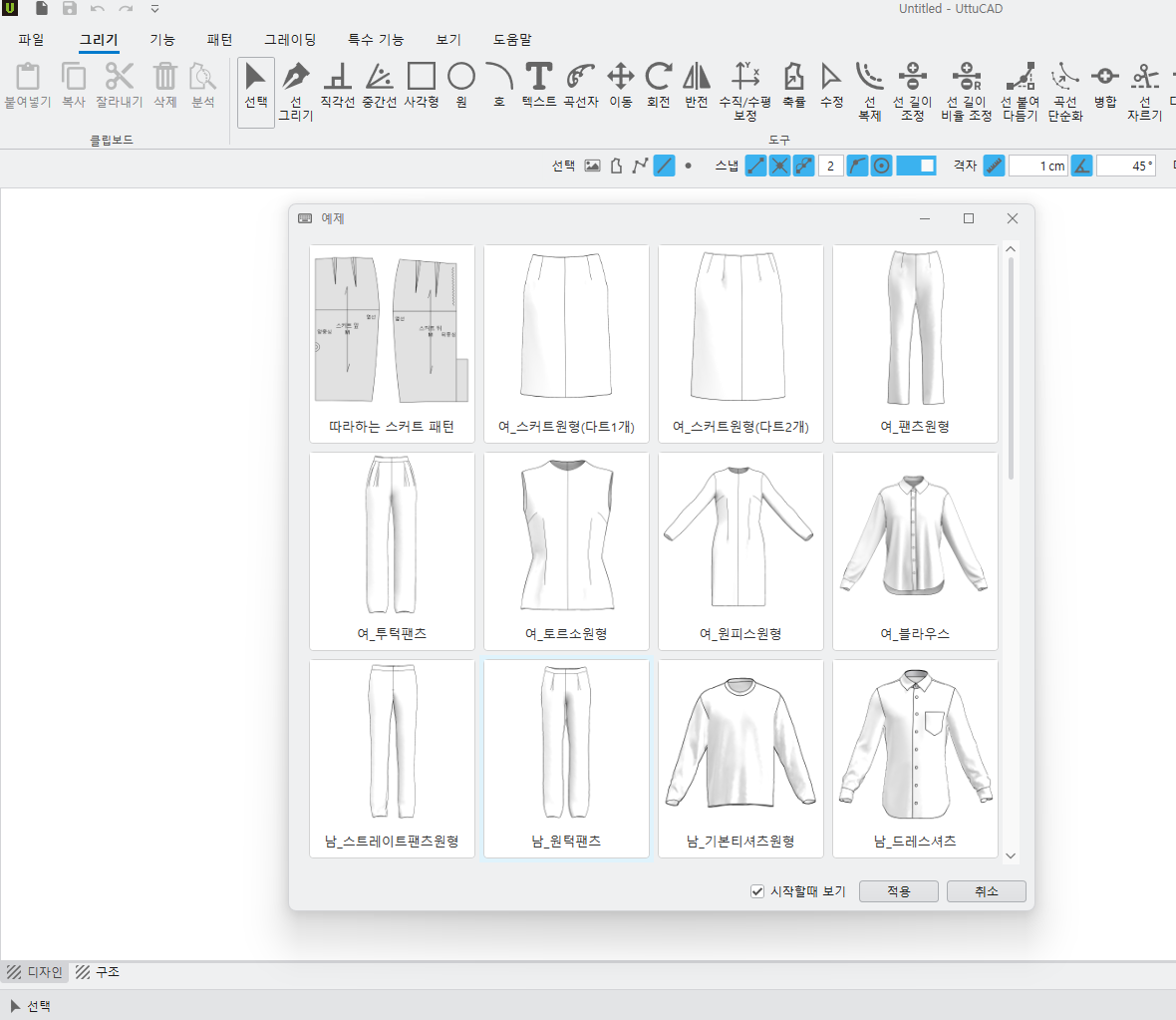
“Skirt pattern to copy” If you select this, you can draft skirts while learning the basic functions..
(2) Various lines(Line shorter than the allowed length, Overlapping lines,
An inner line outside the outline,Unlocked seam)Added a feature to search for..
-However, this feature only works in the selection tool.
<analyze>
① Drawing– select – analyze – Select overlapping lines– search
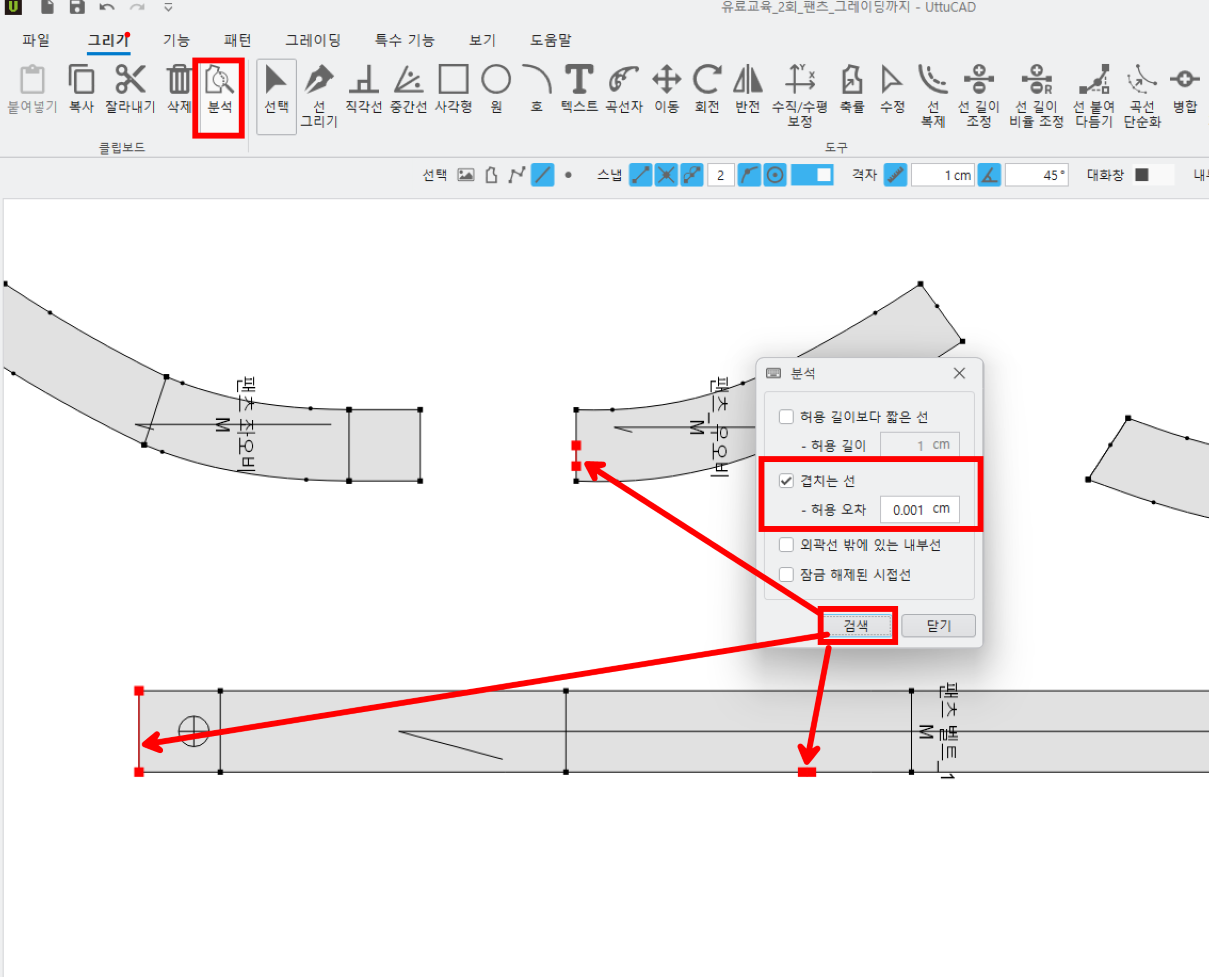
-Overlapping lines within the error range appear in red, and,
As needed DeleteAll lines except for one in the overlapping part of the poem are deleted..
(3) Added a feature to leave a circular pattern afterimage.
<circular pattern>
① look – Activate pattern circle viewdragon
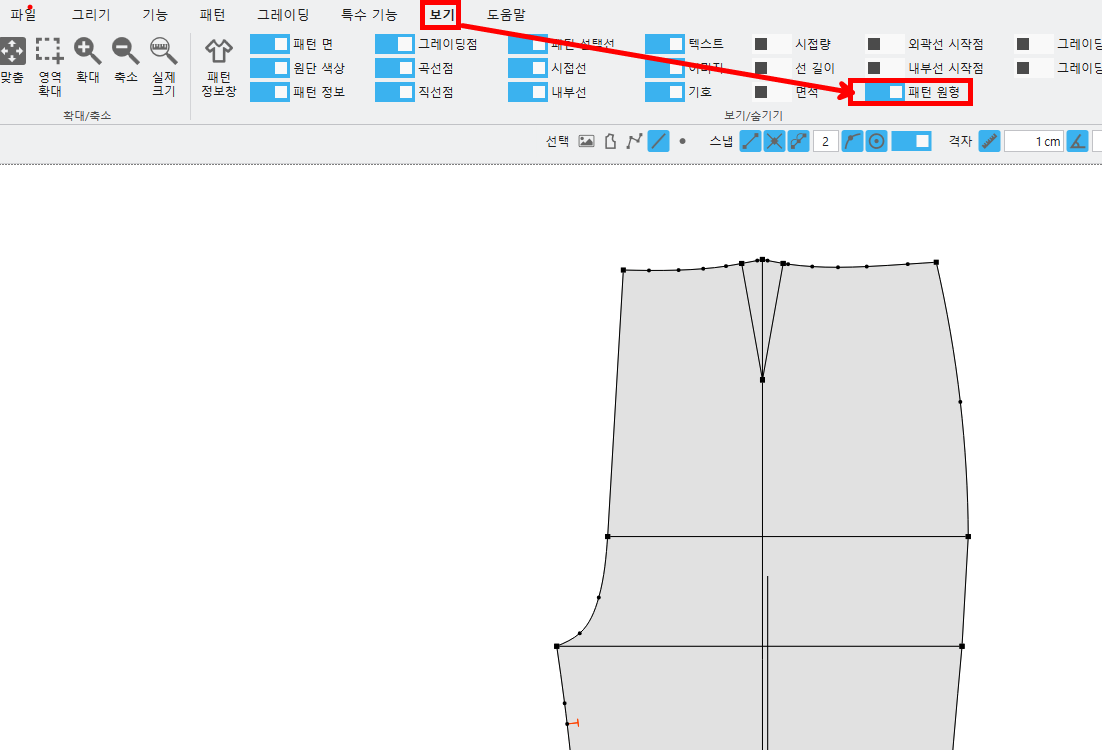
- You must enable the circular pattern view to see the circular lines..
② pattern – circular– Pattern Selection– Line modification of the corresponding pattern
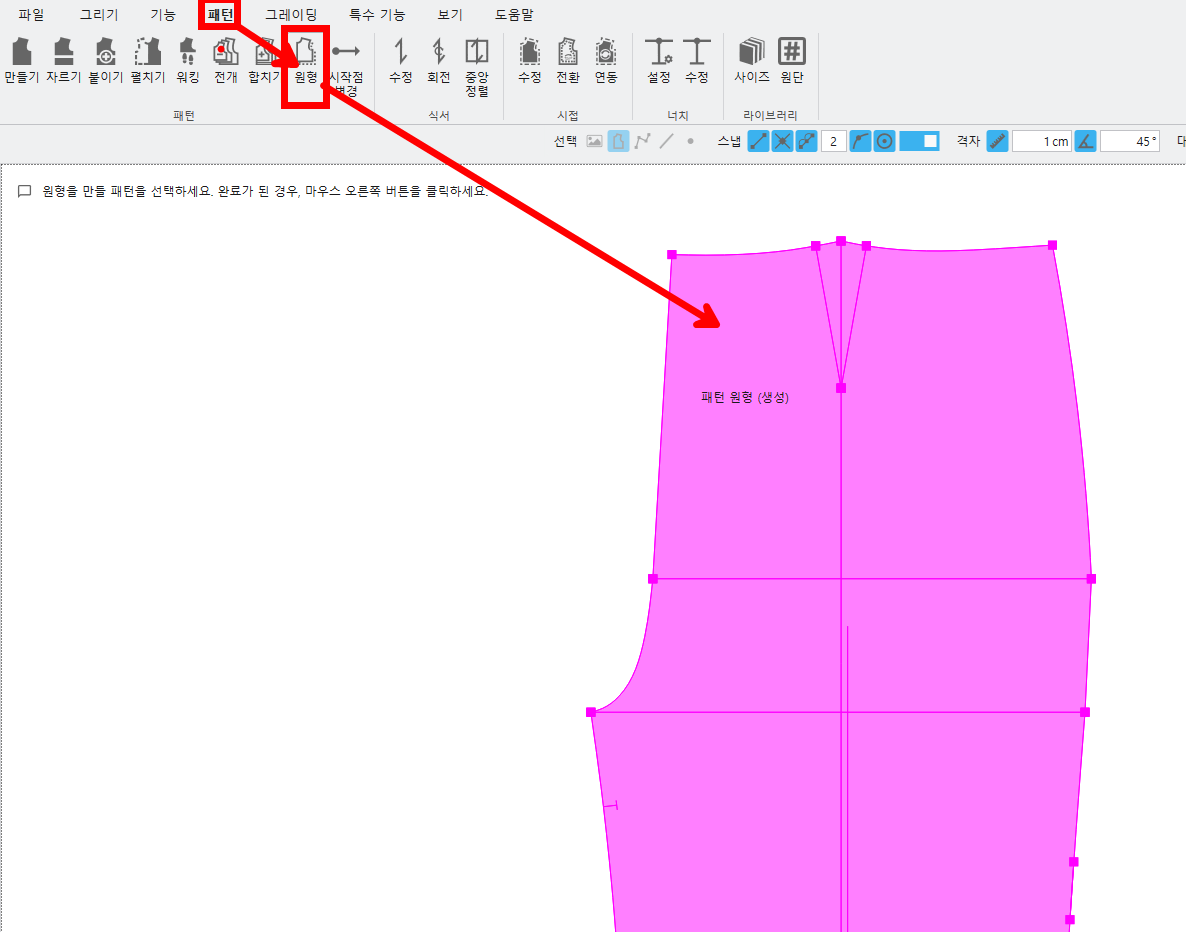
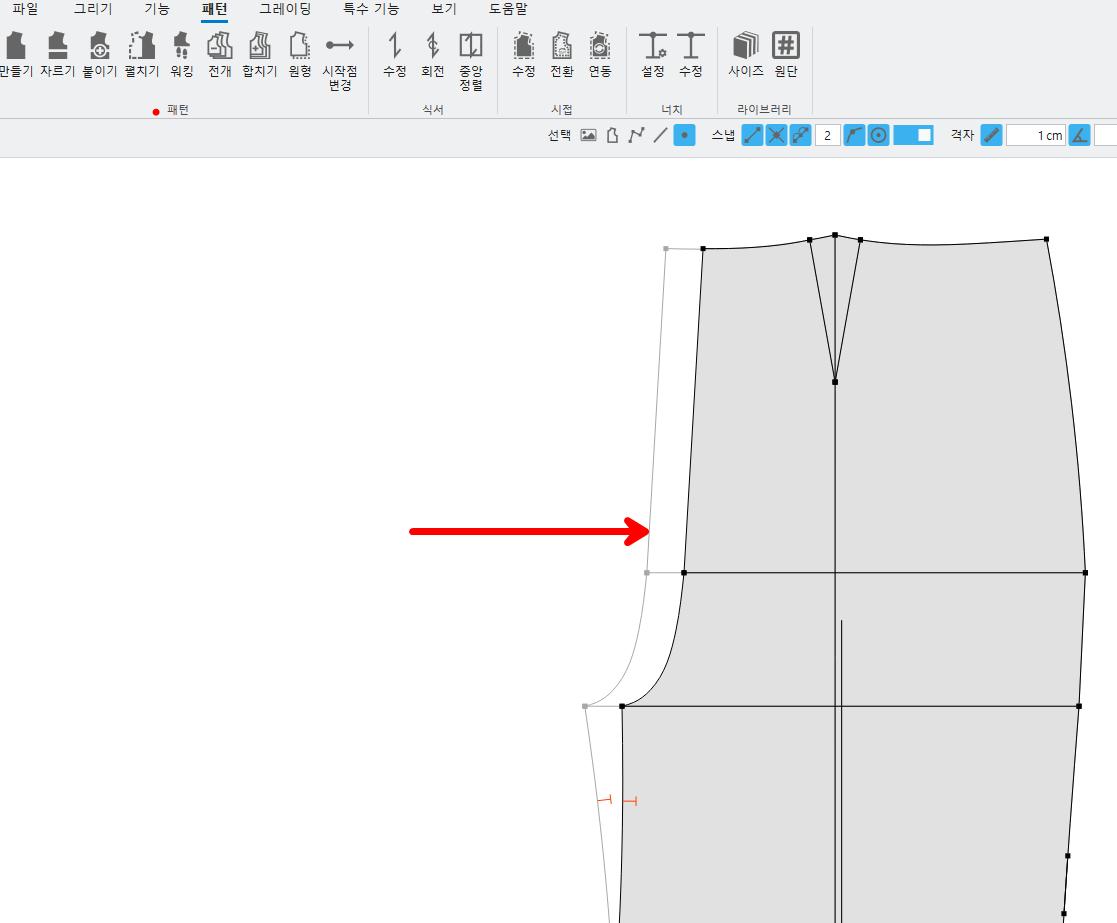
- Generate a pattern prototype, delete, You can save.
-The circular pattern is not selected by default., Snap is applied to find the location when modifying the pattern..
-Select All(Ctrl + A) It is available..
(4) Added a feature to check the actual size of lines on the screen.
<Actual size>
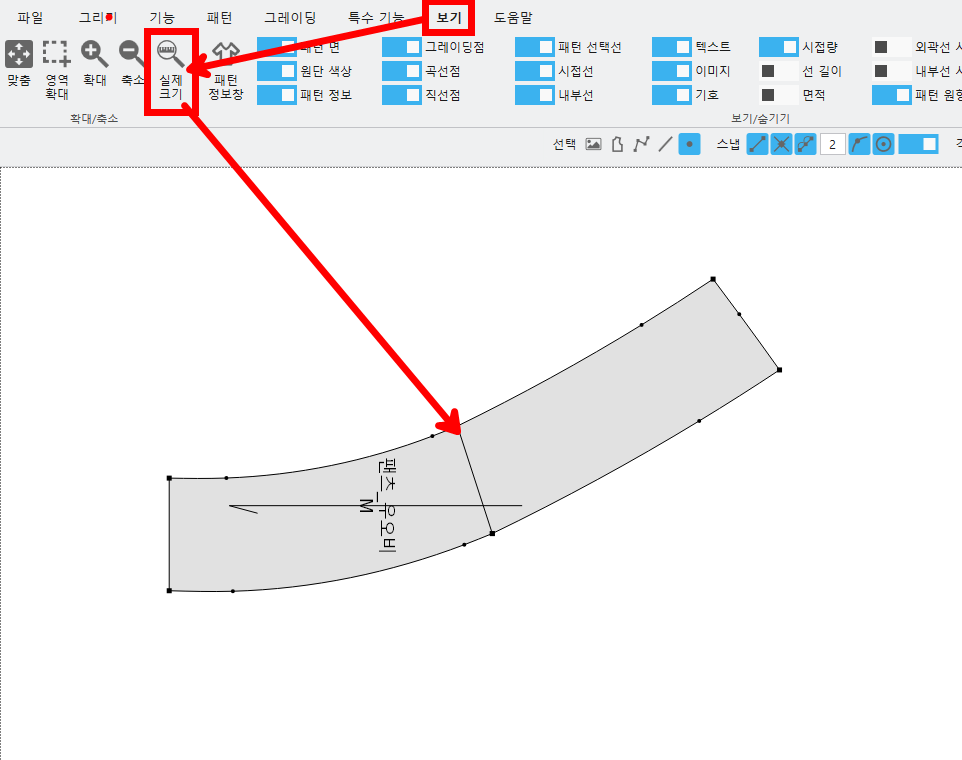
- You can see the actual size on the monitor screen..
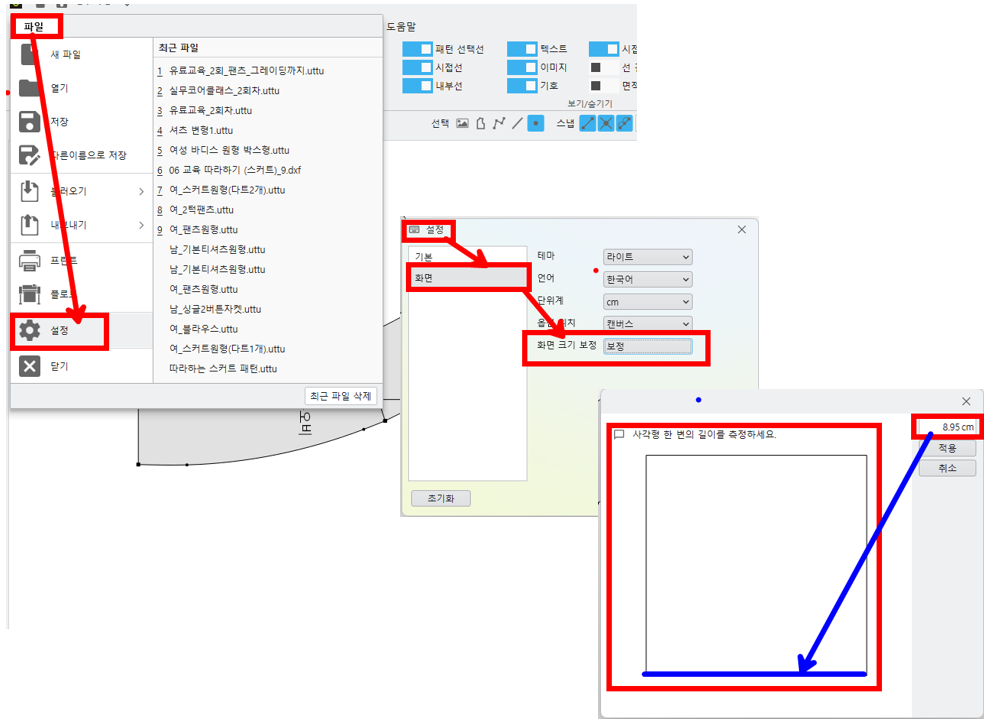
- Since it may vary depending on the user's screen settings, Adjust the screen size in the settings to use it..
(5) Added a feature to change the pattern's outline and inner lines.
<Outline conversion>
① pattern – Outline conversion– Select inner line - Right-click
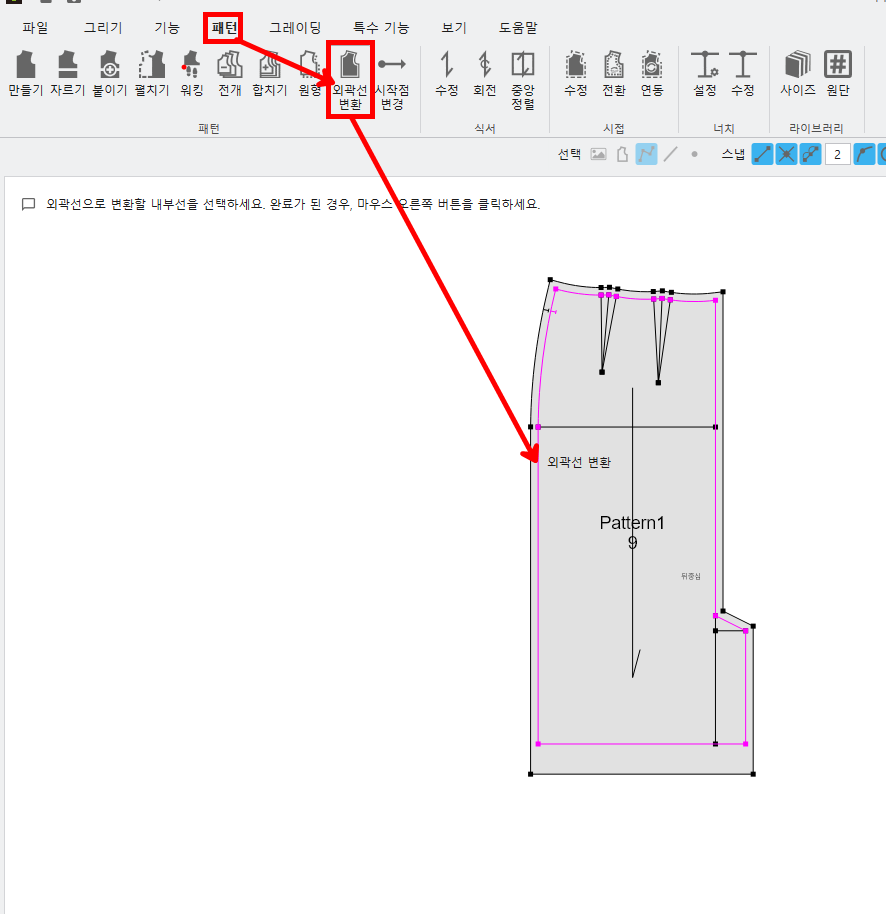
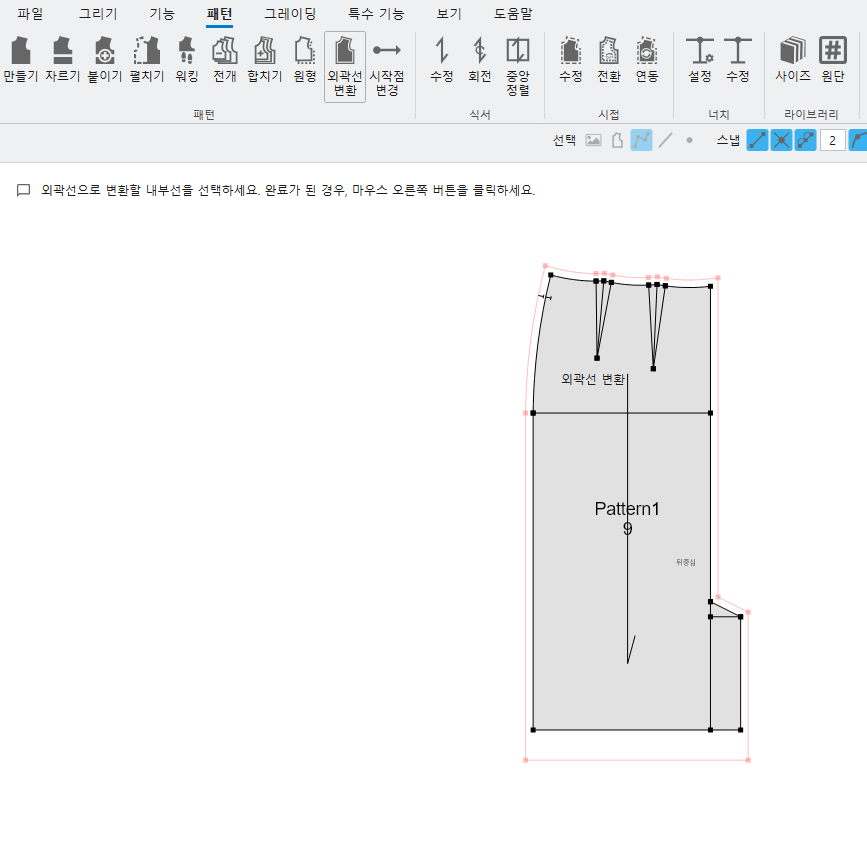
- In other CADs dxf When opening the file, When the pattern comes in along the outline rather than the seam allowance,
When you convert an interior line to an outline, the existing outline is the seam line(cutting line)It changes to.
(6) Improved grading to work in the same window
<Grading mode: ctrl+G>
① Grading - Grading mode
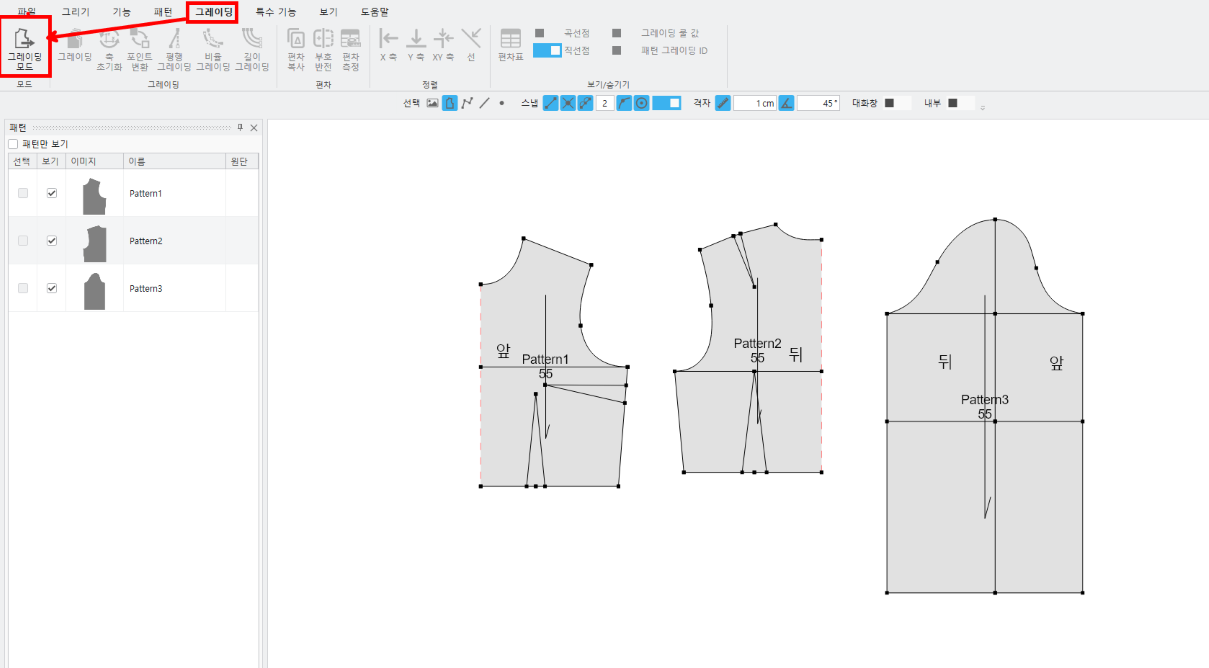
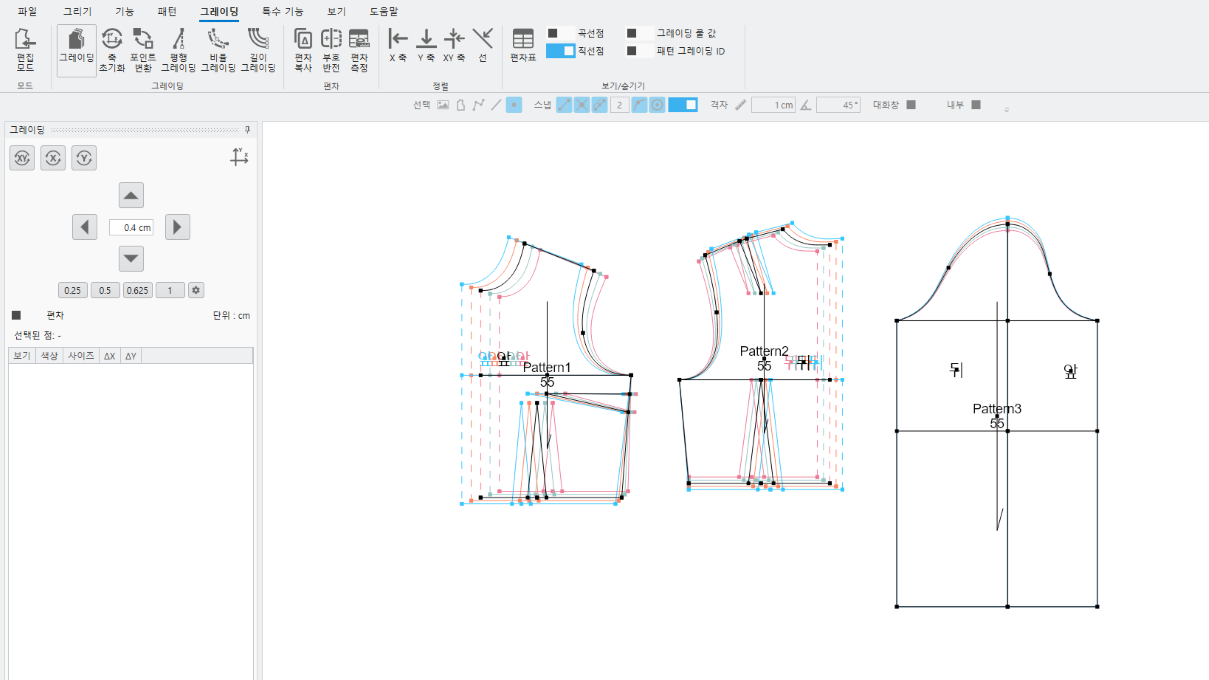
- It switches to the grading mode screen., You can perform grading work..
② Grading– Edit mode
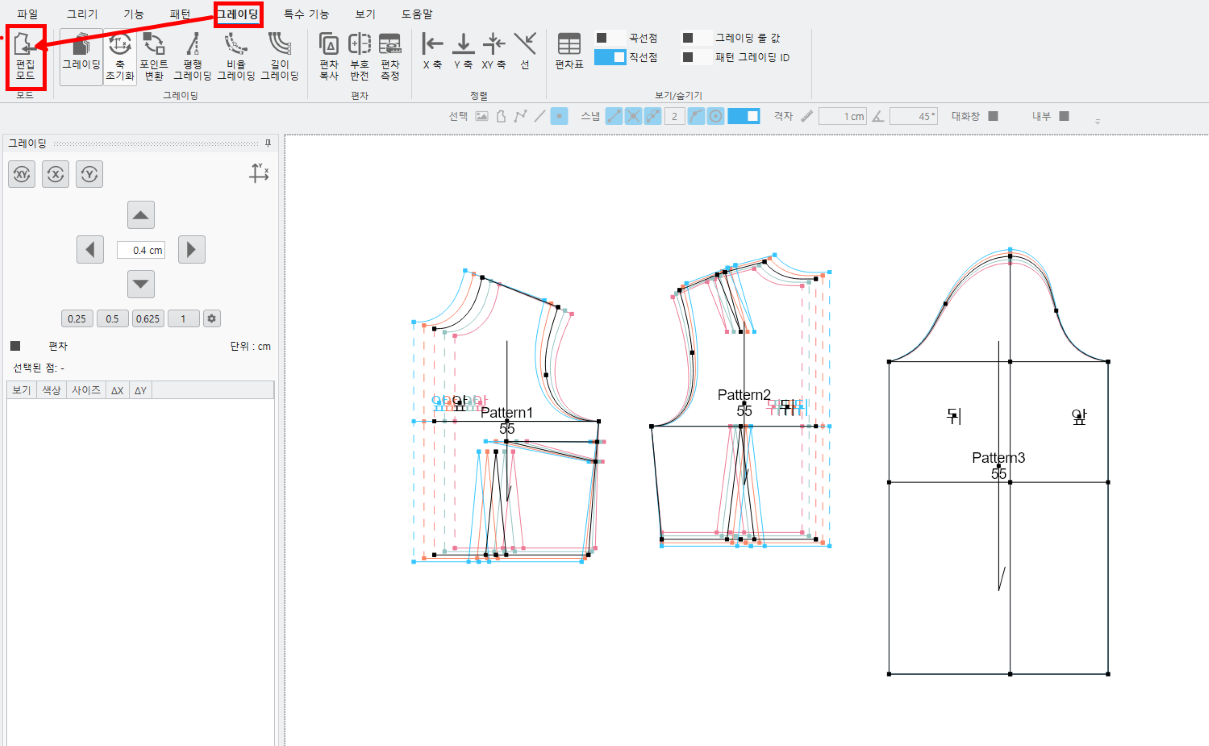
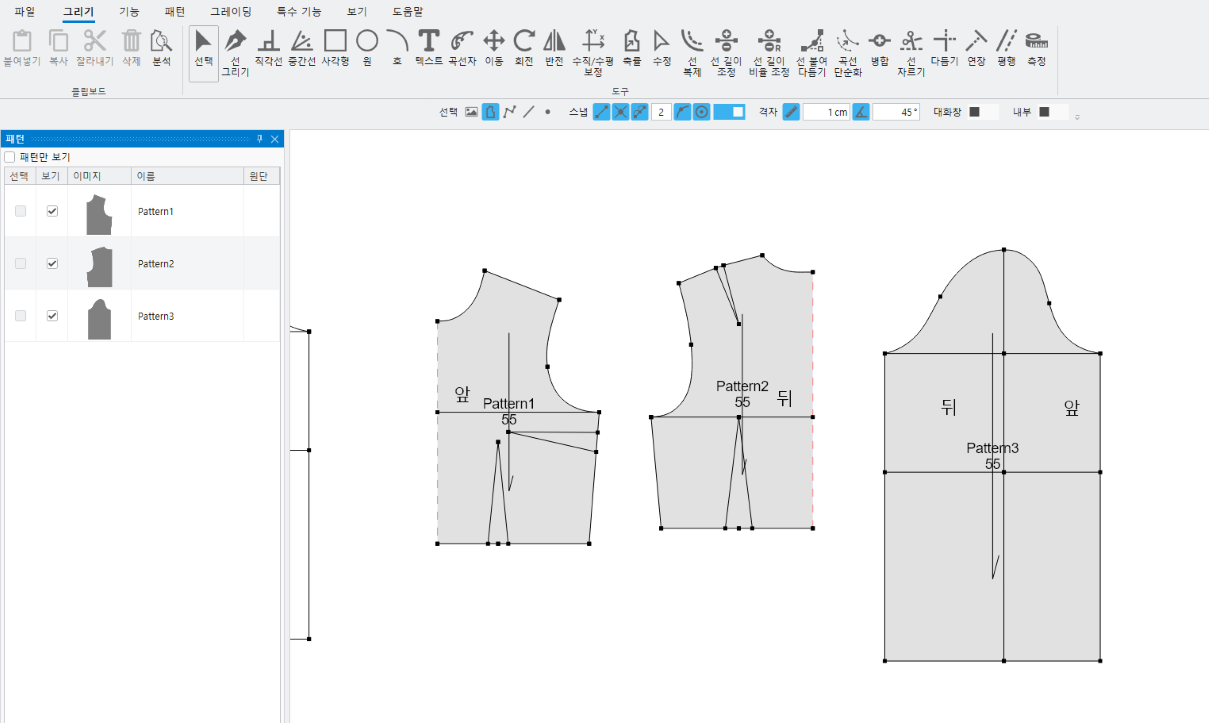
- If you click the edit mode button after finishing the grading work, Switches to the drawing tools screen..
(7) If you add an option when generating a pattern to remove the lines used for pattern creation,
Enabled immediate creation without moving.
<Creating patterns>
① pattern – Making– Select lines to create a pattern(automatic) – Right-click– Line removal used in the pattern(Select Option)
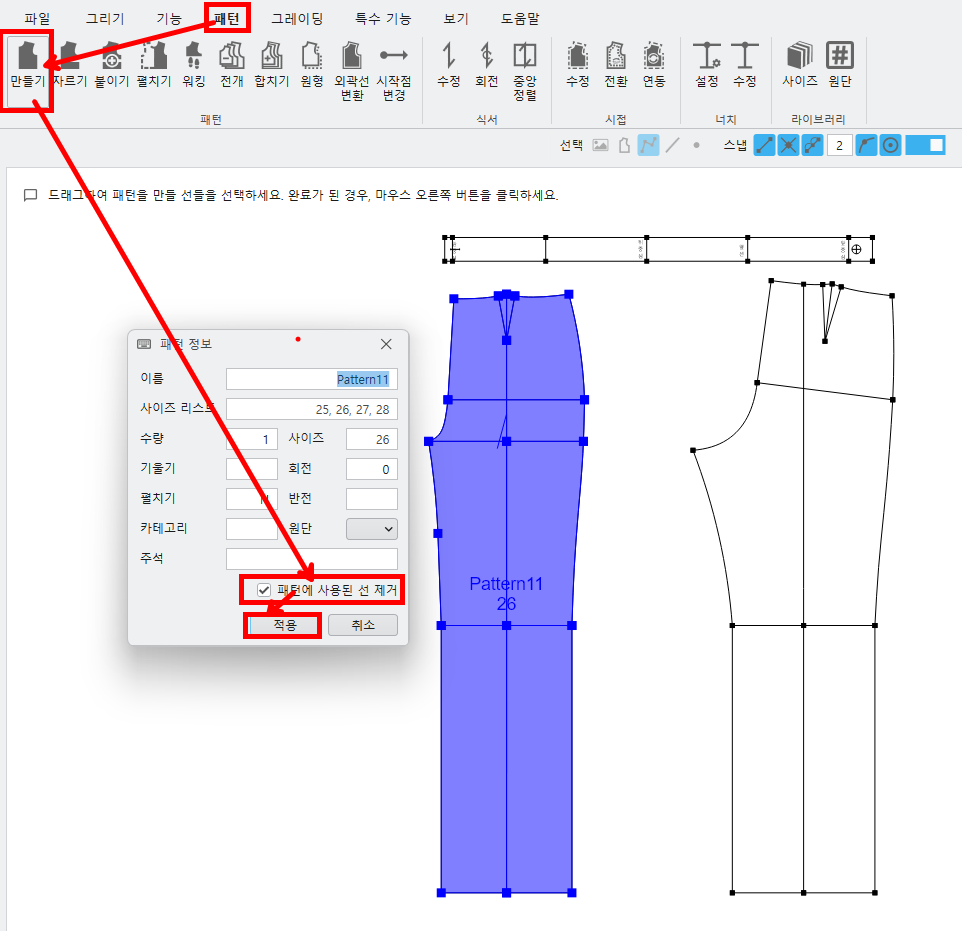
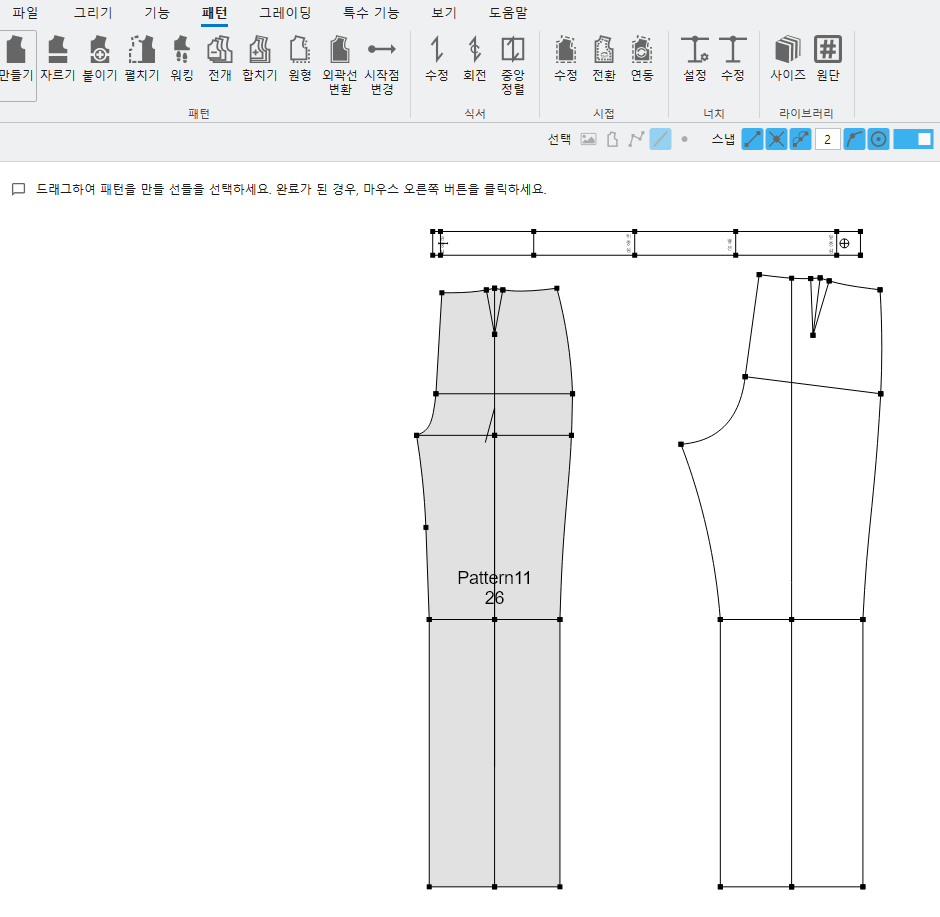
-
You've been logged out due to inactivity. UTTU CADIt is not installed. Please try again after installing it.
Please log in again to continue.