




 한국어
한국어
 English
 简体中文
简体中文
 日本語
日本語
 Tiếng Việt
 ខ្មែរ
ខ្មែរ
[Update]UTTU CADv.1.11
hello UTTU CADno see.
UTTU CADv.1.11 We would like to inform you about the update..

<Grading selection sorting>
① Grading mode– Select sort- Select baseline to align
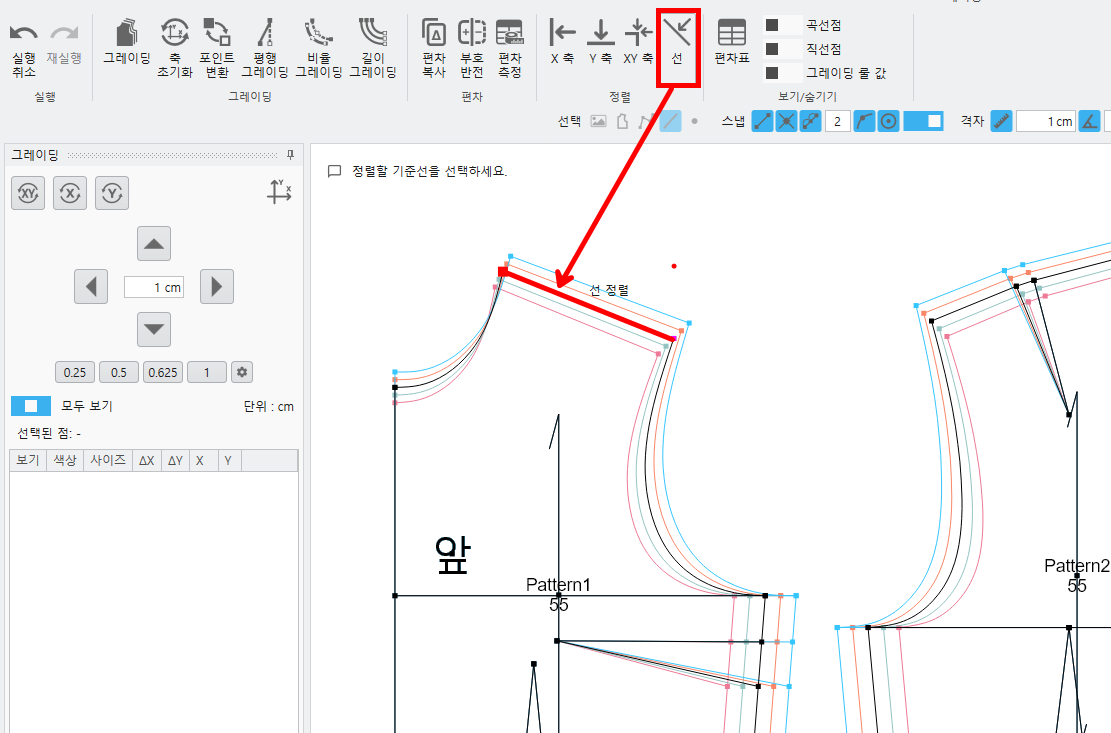
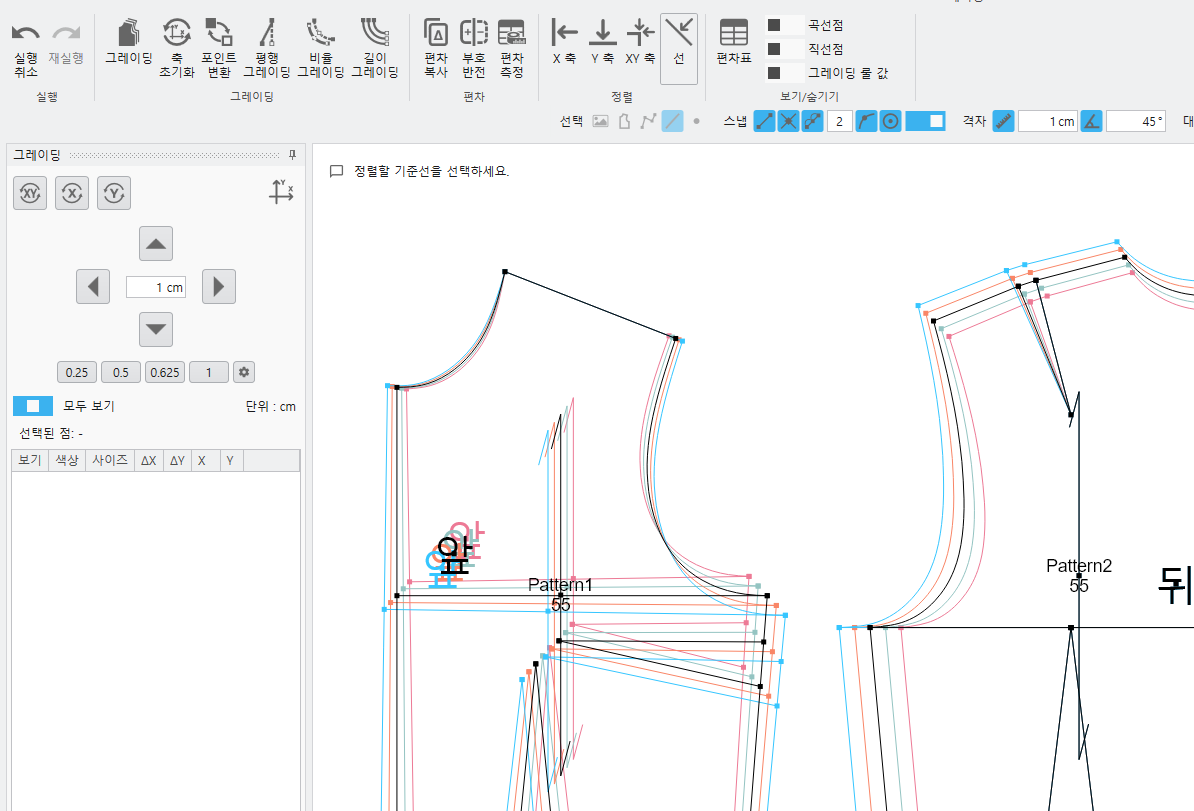
-The pattern is aligned to the baseline to be aligned..
(2) Work done in another CAD dxfCutting lines generated when importing a file(Cutting Line)Function to convert to seam allowance
<Seam allowance conversion>
① pattern - Seam allowance conversion– Select outline to convert to seam allowance
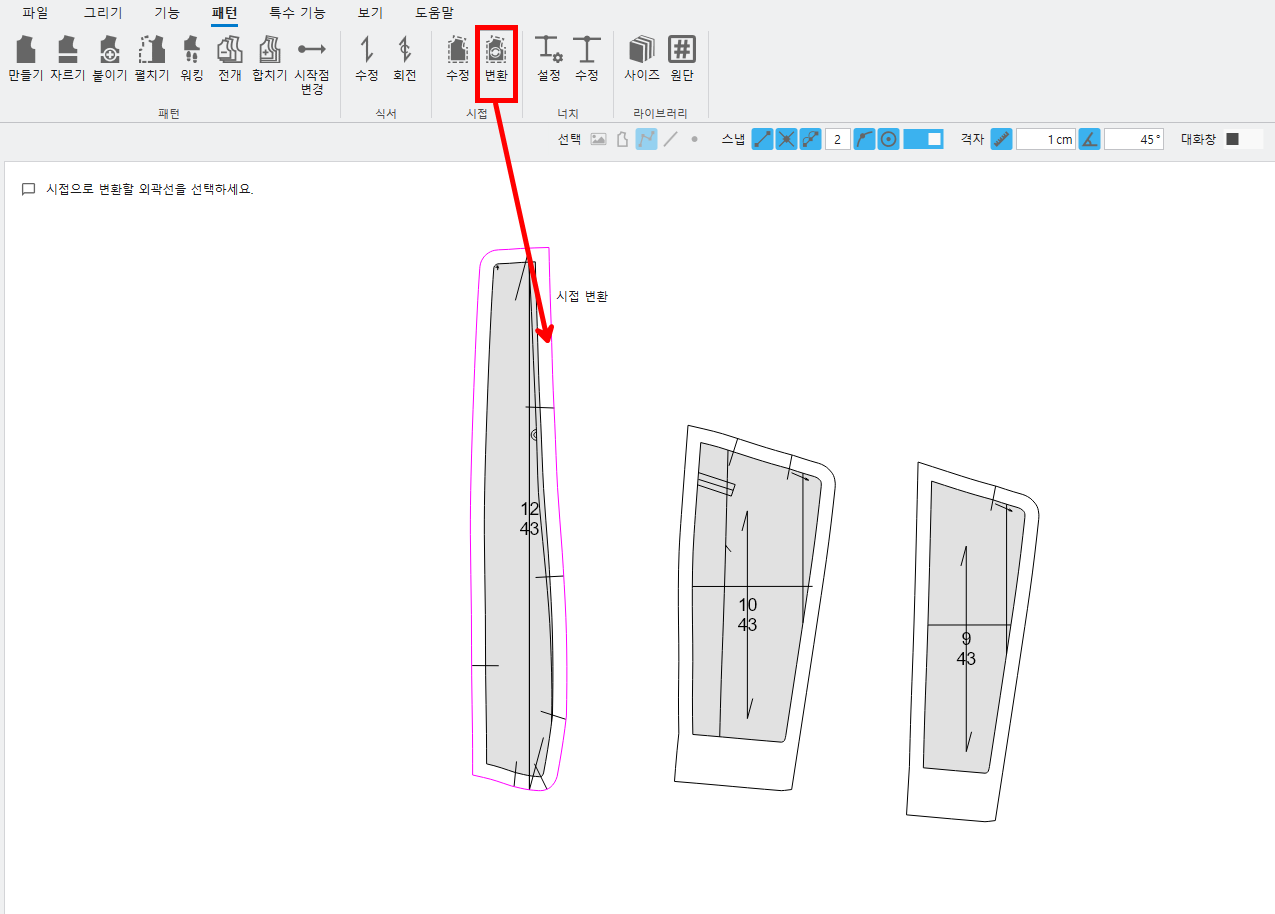
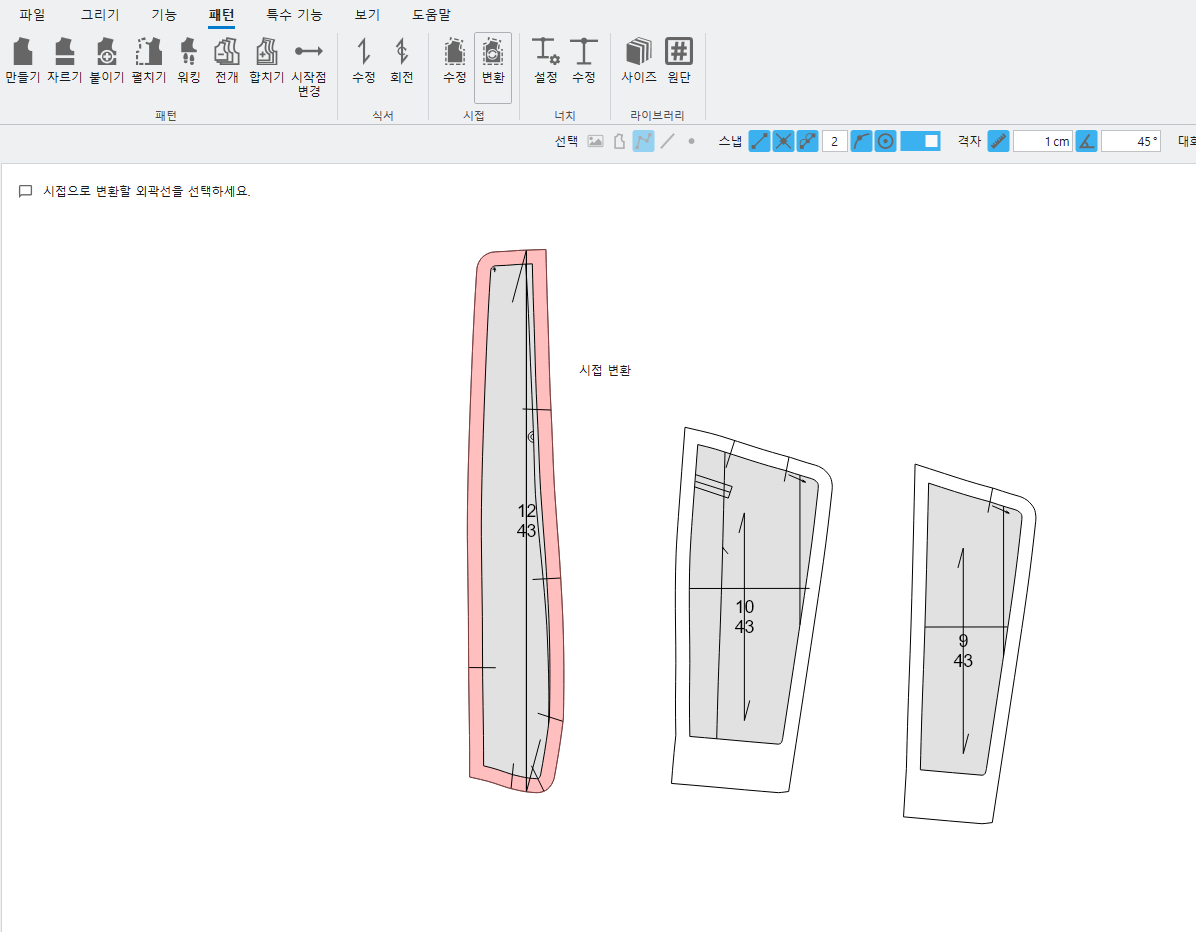
-The outline is converted into a seam allowance..

- Check the corner seam allowances and erase the outline..(continuous line)
(3) A feature to combine two patterns step-by-step by matching lengths, and a feature to add a notch at the aligned point.
<Pattern walking>
① Pattern walking– Select points of the pattern to move– Select points of the pattern to fix
yes) At the crotch of the pants 5cmWhen you want to add a notch point to a location,
pattern to move(front panel)Right-click after selecting the point - Pattern to fix(backboard)Select the point and right-click
– to length 5cmMove button after input(Right direction) - After selecting all patterns in the notch, click Create- apply
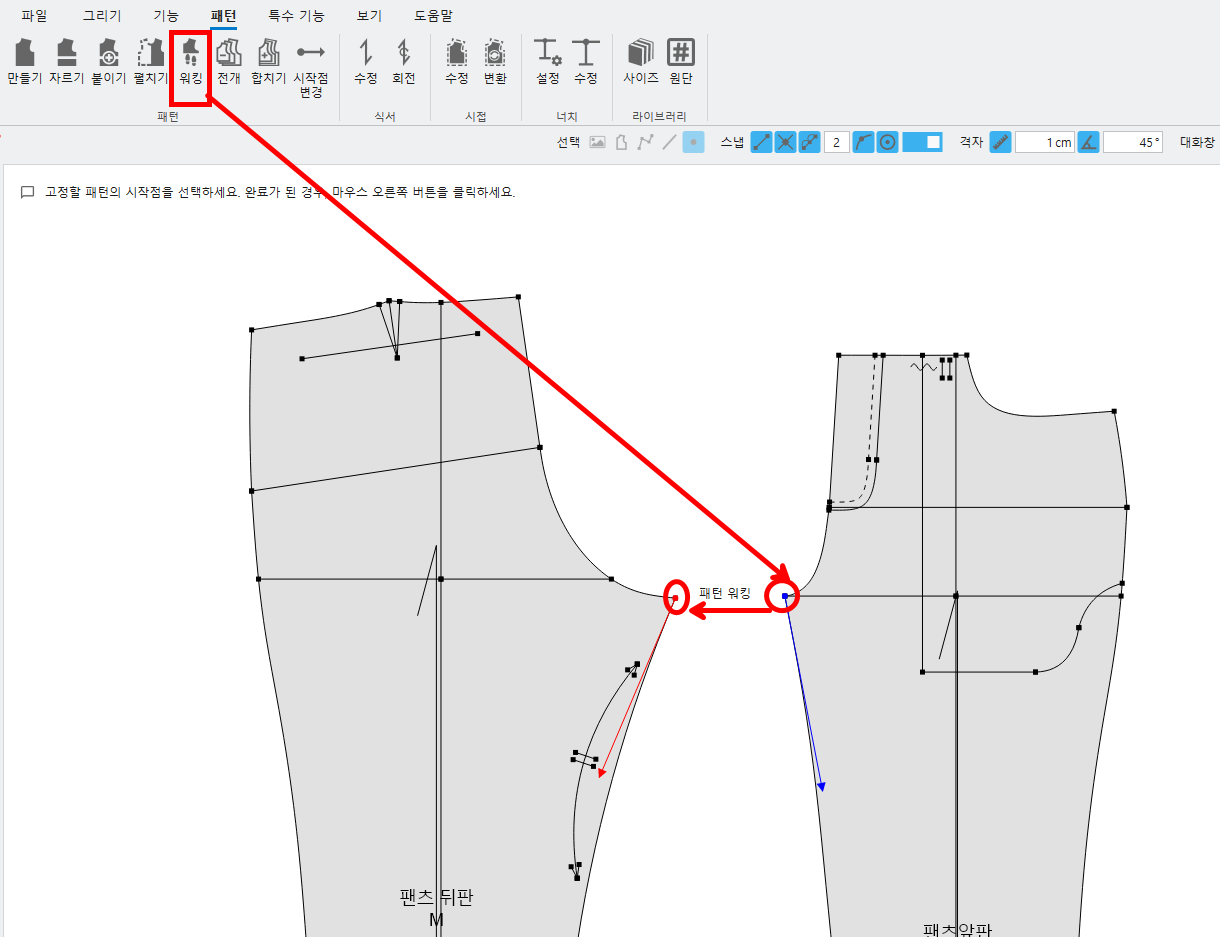
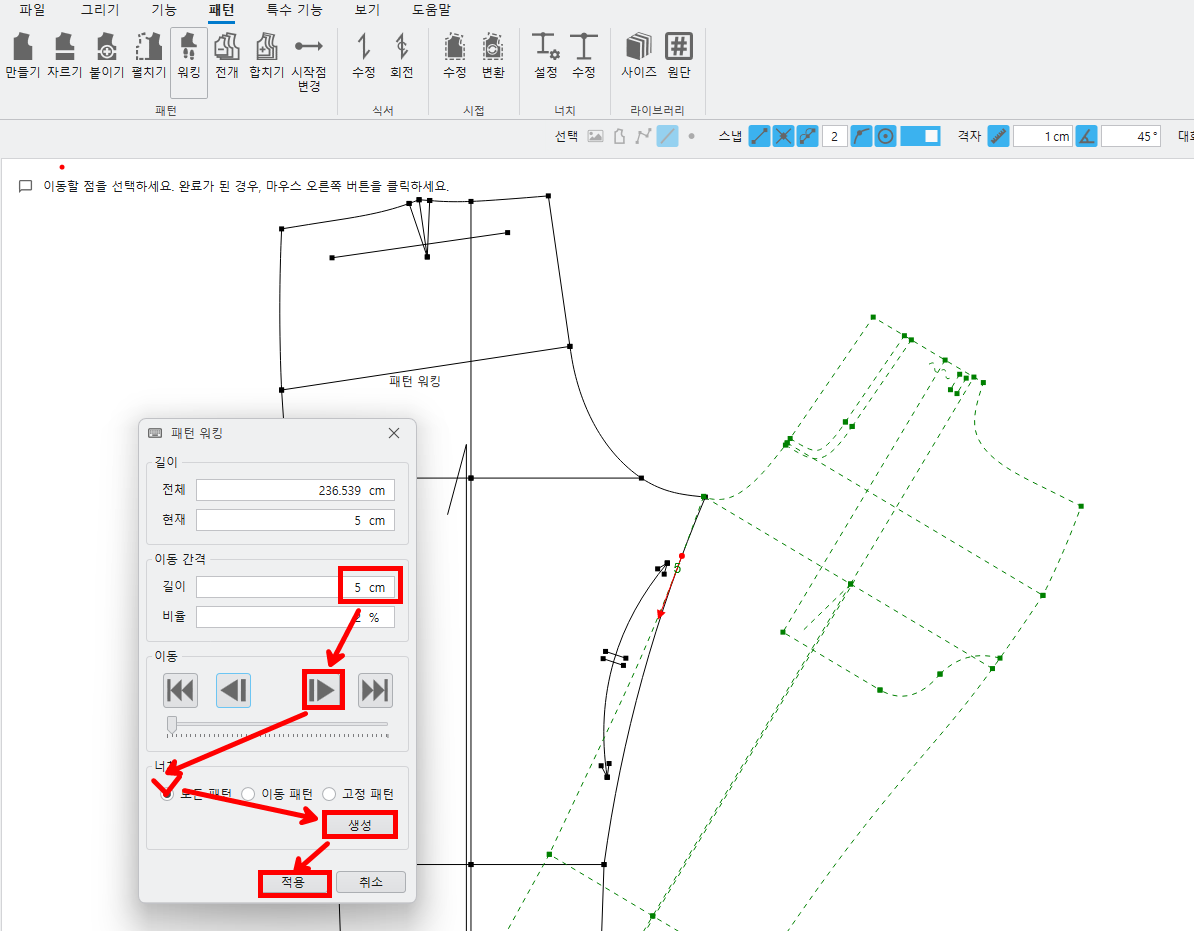
- If you enter a value for the movement interval, the pattern moves by that interval using the arrow keys..
- You can change the movement interval value from the current length position and move by the changed amount using the arrow keys..
- You can create a notch at the desired location..
(4) DXFVarious file imports are possible
① file– Import– DXF – Select File– opening
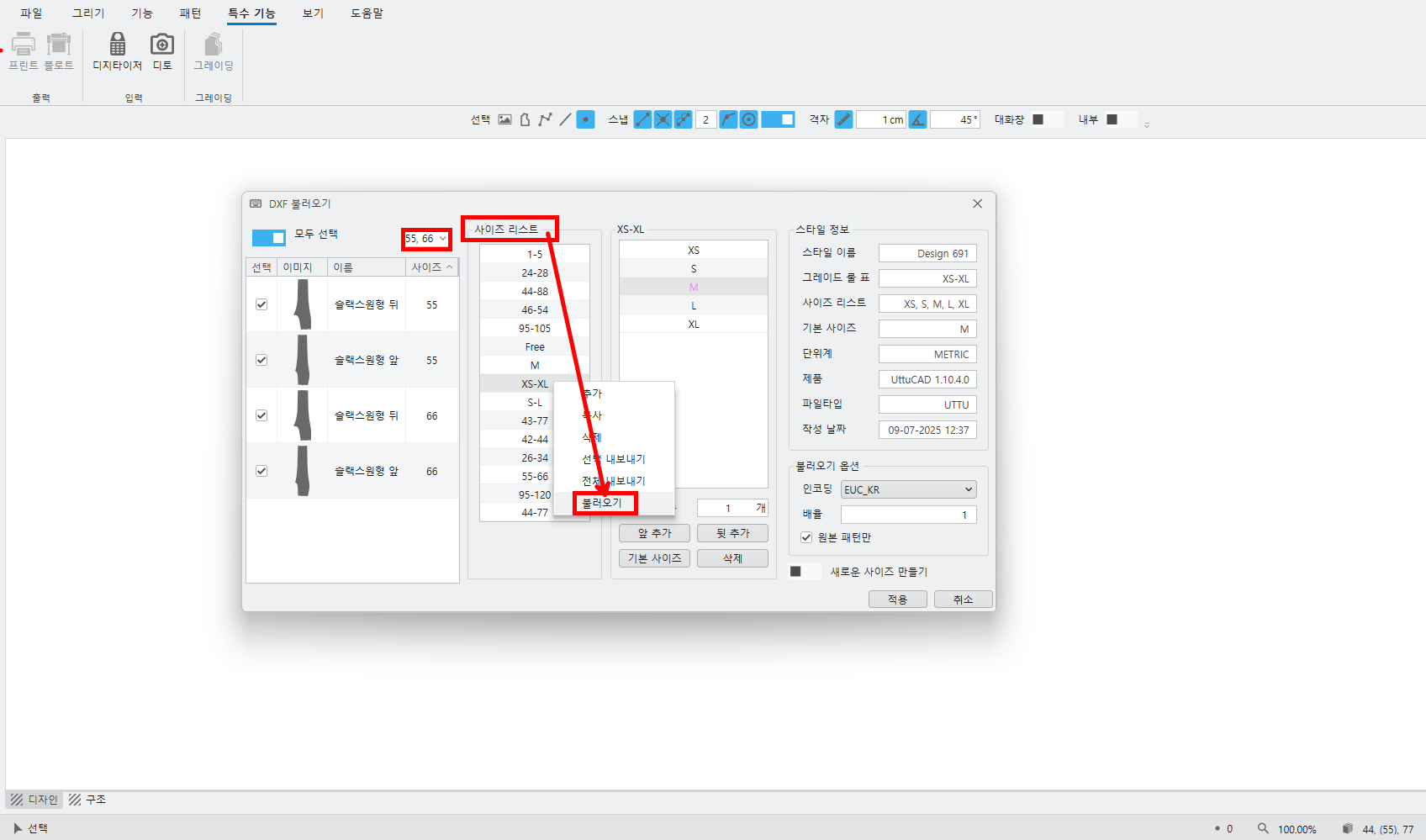
- Users can select the size in the import options to import..
- You can select from the size list..
(You can load the saved size list..)
(5) DXFYou can export files in various ways.
① file– Export– DXF
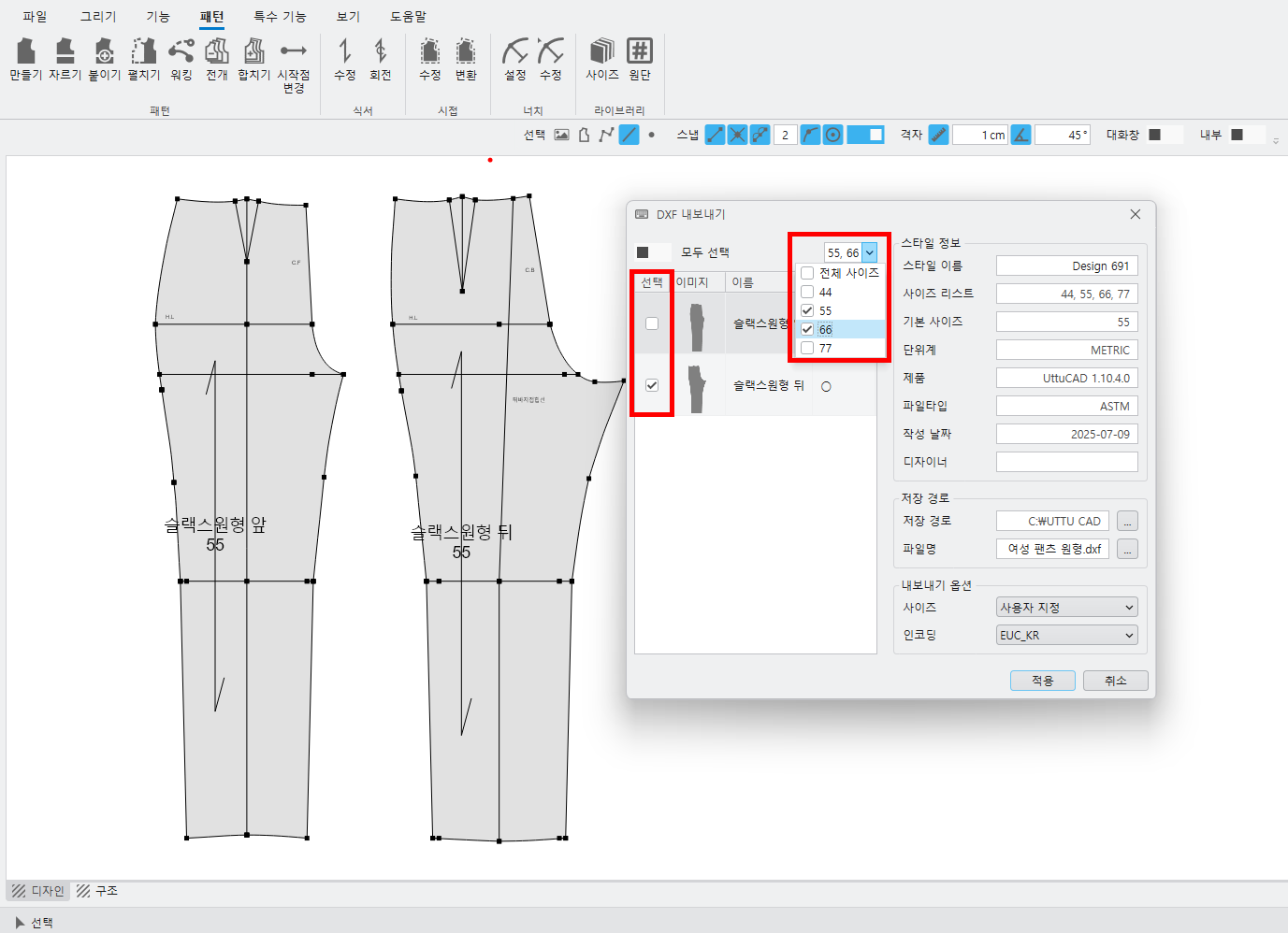
② Select various options
- Select a pattern / You can select the size to export..
(6) You can cut even if the cutting line is not attached to the outline..
<Cutting patterns>
① Cutting patterns-Pattern selection-Right-click to select the line to cut
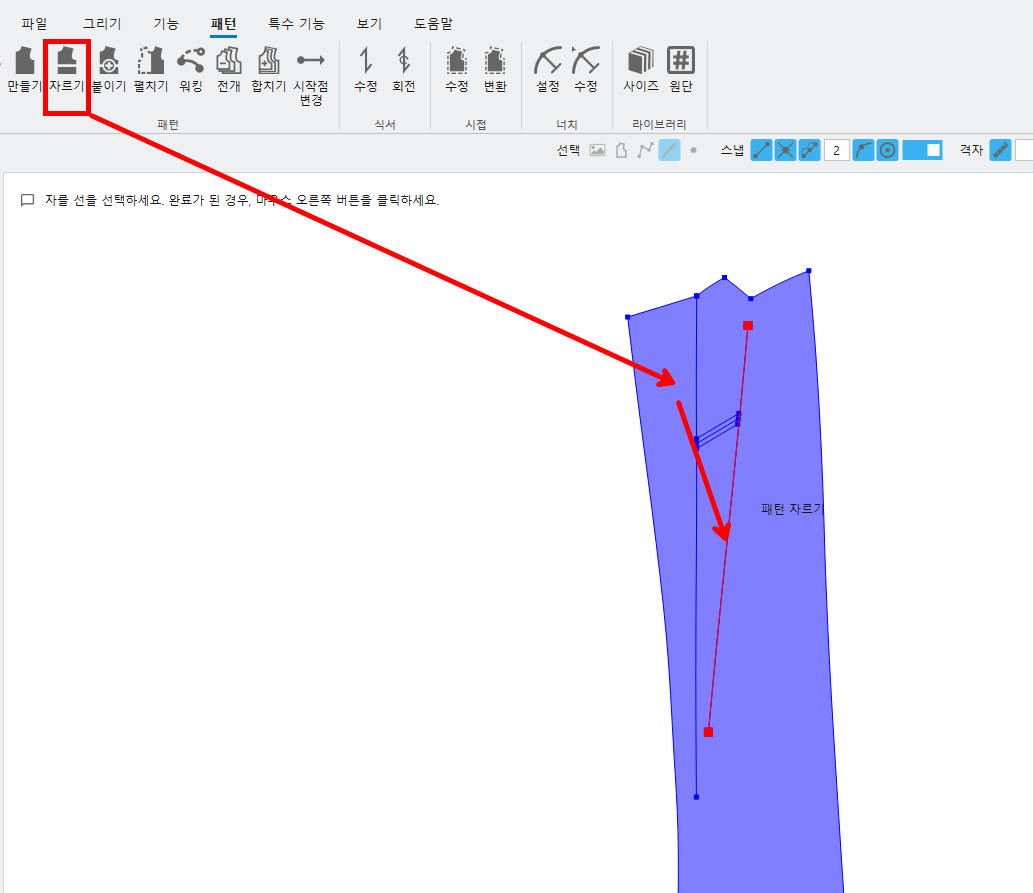
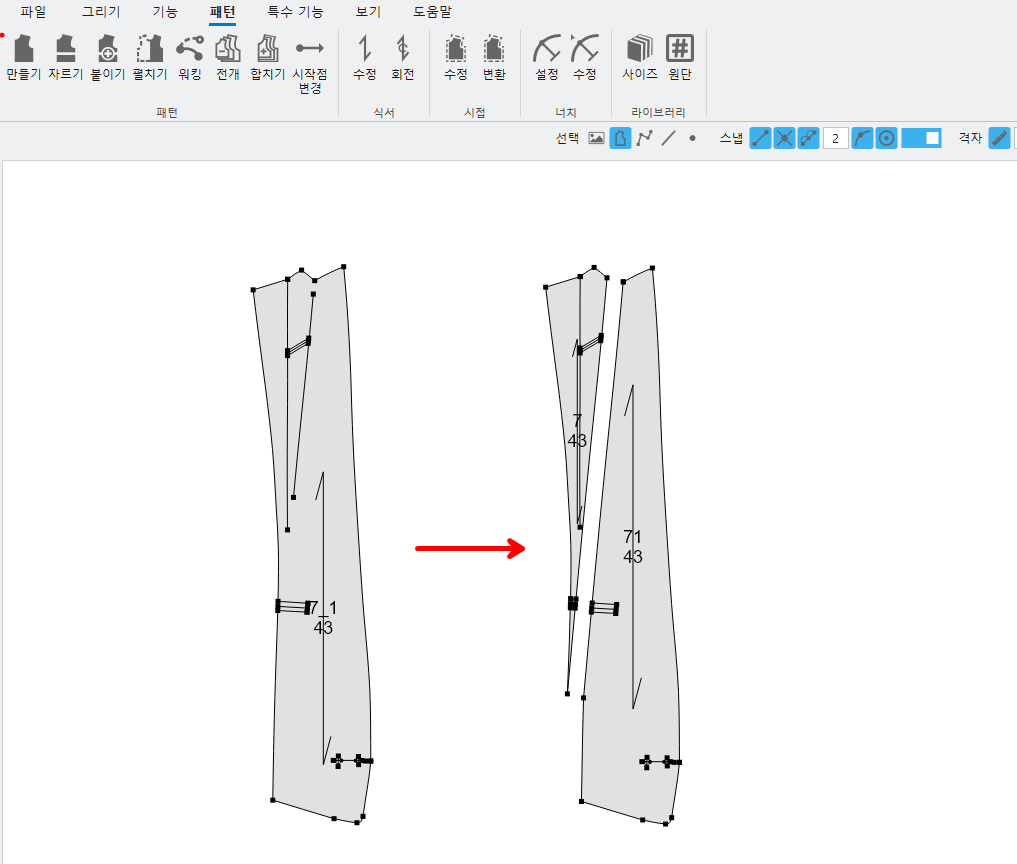
- The pattern is cut into two at the location where the selected line segment is extended vertically..
- You can cut even if the cutting line is not attached to the outline..
- After cutting the pattern, the grain direction of the cut pattern is maintained..
- After cutting the pattern, the grading values and notches of the cut portion are preserved..
(7) After attaching the pattern, the grain direction of the attached pattern is improved to be the same as the direction of the reference pattern..
<Combining patterns>
① Attaching patterns– Right-click to select baseline– Right-click to select the line to paste– Select reference point– Select movement point
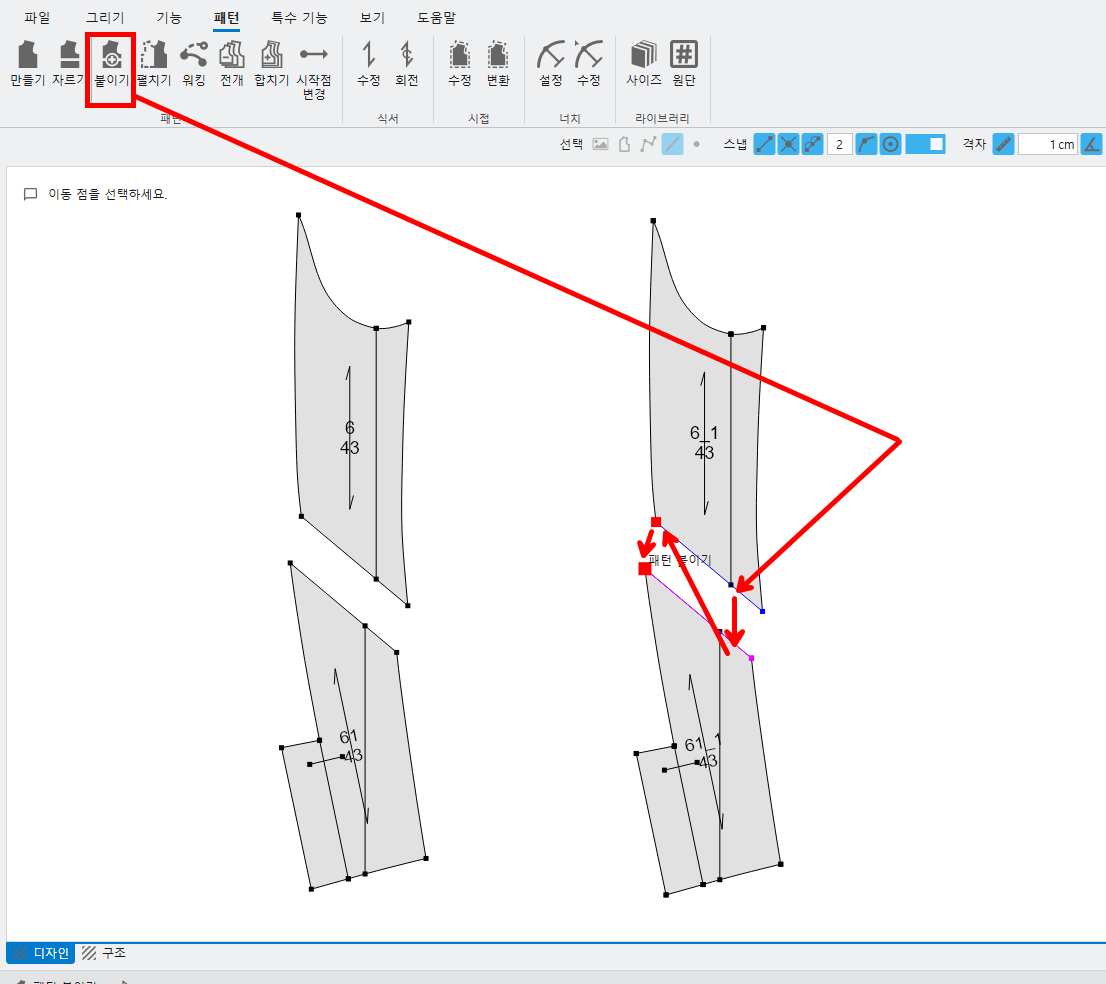
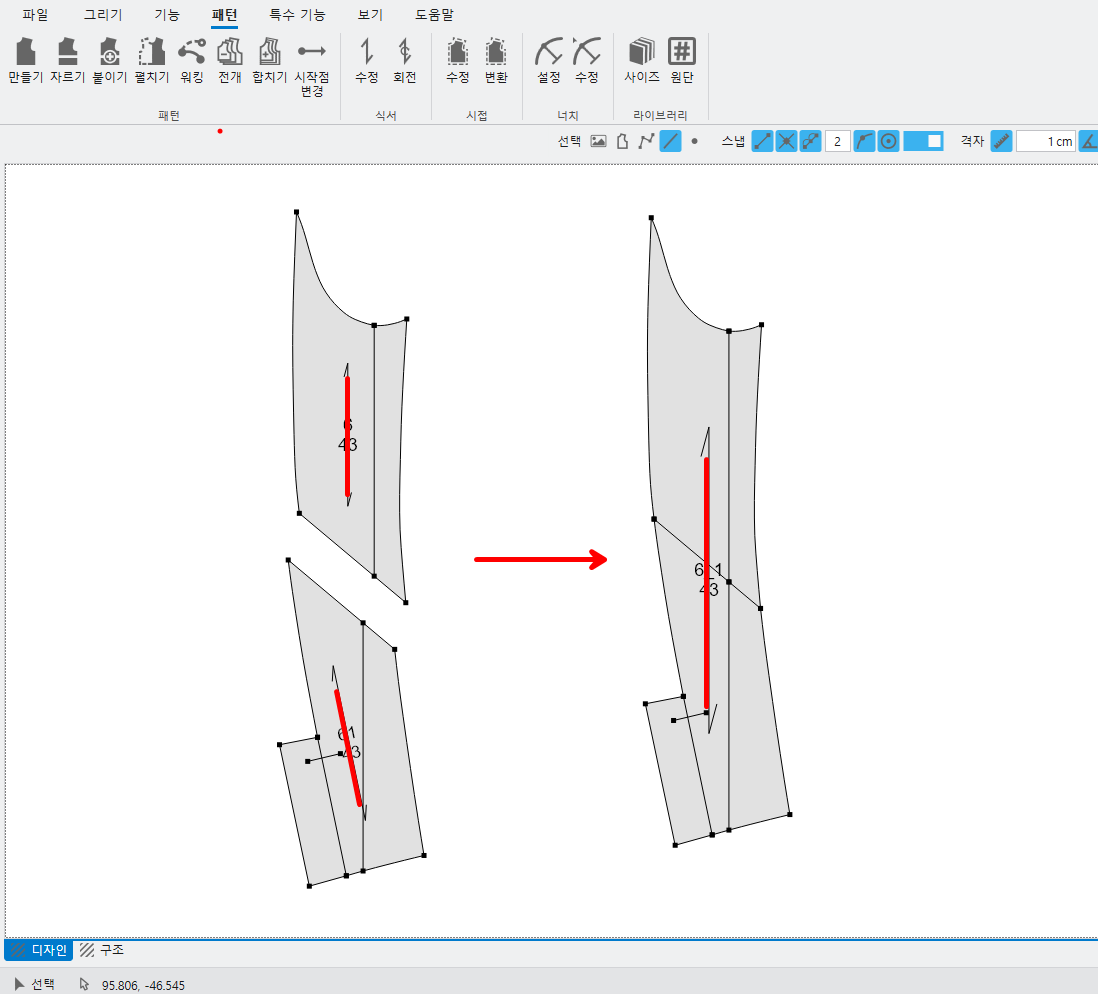
- Patterns are merged in the direction of the selvage of the pattern with the baseline..
- Improvements have been made to ensure that the grading values and notches of the attached pattern are maintained after the pattern is applied..
(8) Multiple selections are possible during parallel grading, and, Improved to apply to other patterns as well.
<Parallel grading>
① Grading mode– Parallel grading– Select points to apply parallel deviation
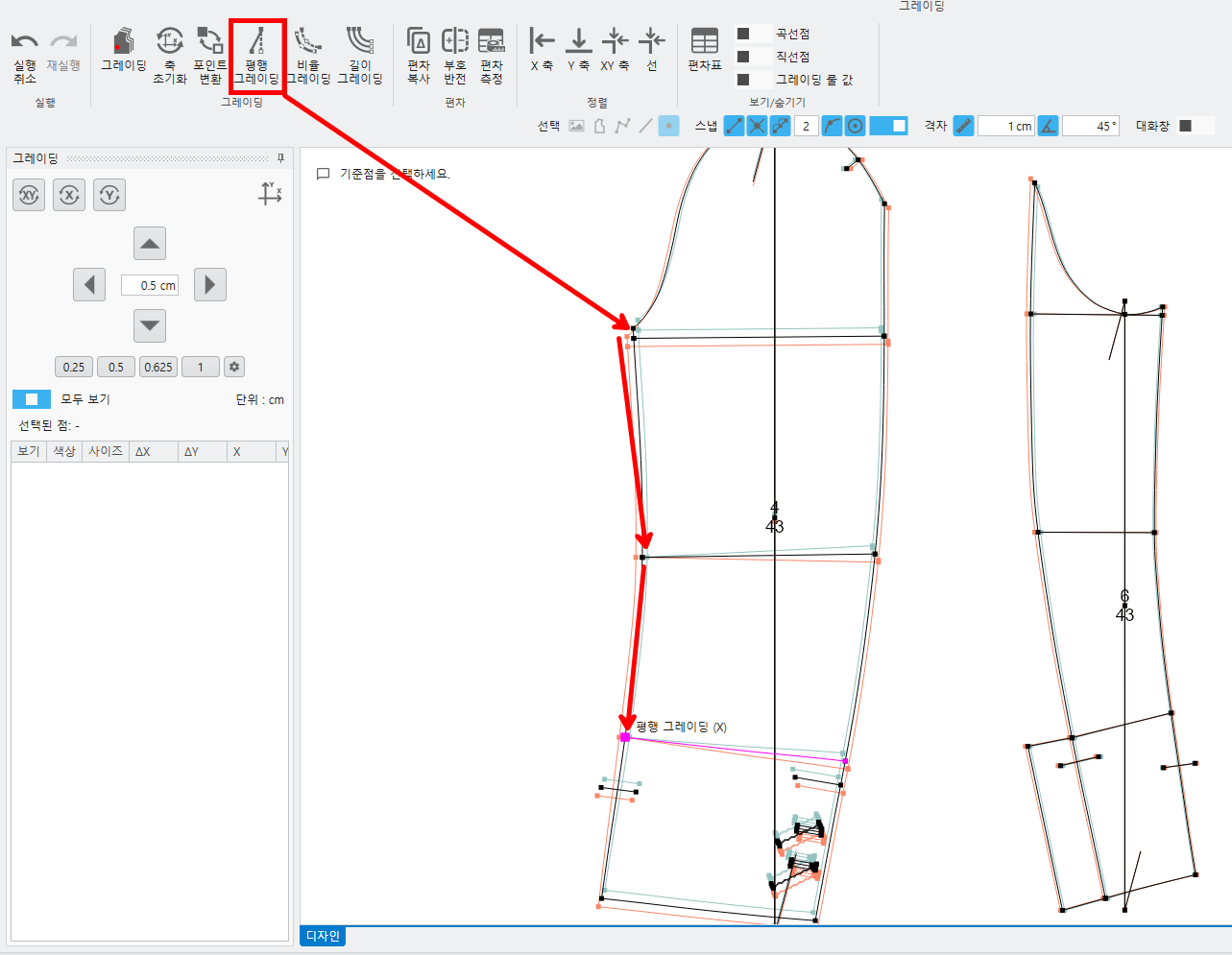
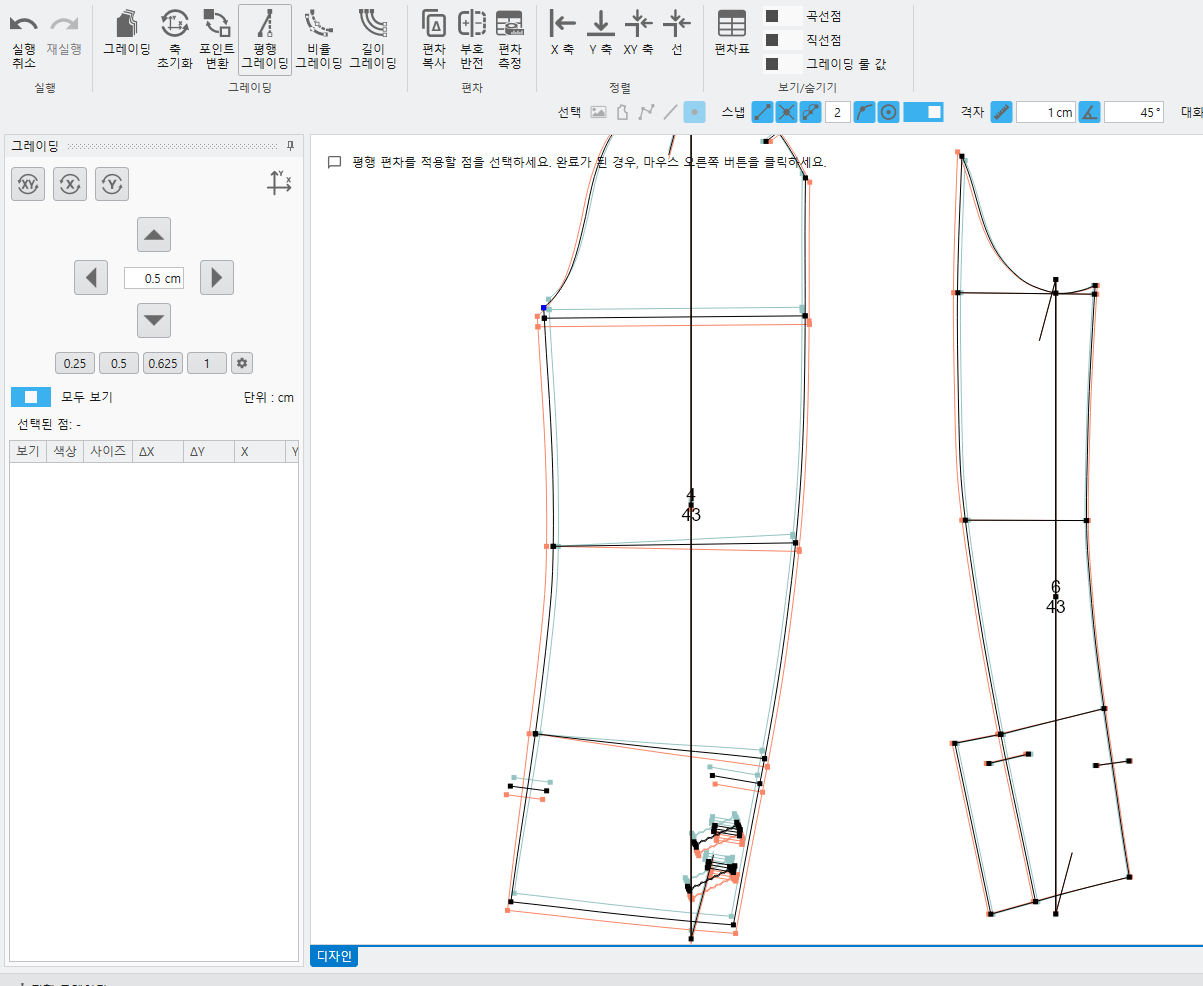
- Multiple selections of parallel grading are possible,, You can designate them all at once..
(9) Improved to allow selection of continuous lines during length grading.
① Grading mode– Length grading– Right-click to select the continuous line to correct the length deviation.
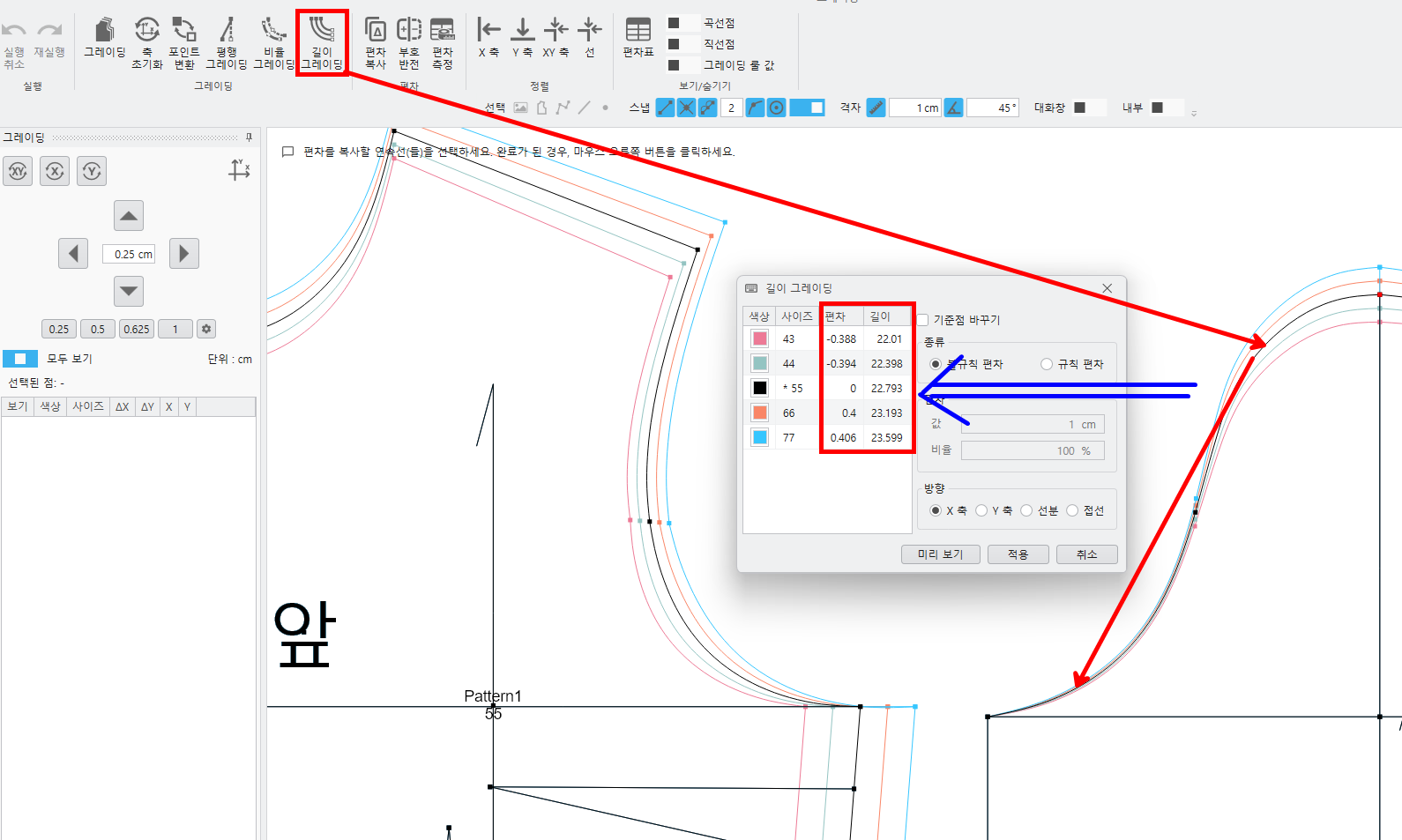
- When you select the line to correct the length deviation, a window appears..
② After selecting the continuous line to copy the deviation,
You've been logged out due to inactivity. UTTU CADIt is not installed. Please try again after installing it.
Please log in again to continue.